You are offline
Golearnam
LoginRegister for FREE
LoginGet Started
Explore All Courses
Shop All Digital Products
ArticlesPrivacy PolicyTerms of ServiceGetting StartedAll Guides
Our StoryMission & VisionOur TeamPartnersContact Us
Create WebinarsBecome a TutorSell ProductsAffiliate Program
View All PlansCreator OrganizationsBusiness PlansCreate an OrganizationTeams Overview
Language:
LoginRegister for FREE
Back to Guides

All Guides

Getting StartedHow to EnrollPayment GuideLearning a CourseQuizzes & AssessmentsEarning CertificatesBecoming a TutorCreating a CourseIdentity VerificationSelling on GoStore

On This Page

1. Access the Creator Dashboard2. Create a New Product3. Fill in Product Details4. Upload Your Product File5. Set Your Price6. Add a Thumbnail7. Review and Publish

Selling on GoStore

A step-by-step guide to listing your first digital product on the Golearnam marketplace and starting to earn.

6 min read

On This Page

  1. 1. Access the Creator Dashboard
  2. 2. Create a New Product
  3. 3. Fill in Product Details
  4. 4. Upload Your Product File
  5. 5. Set Your Price
  6. 6. Add a Thumbnail
  7. 7. Review and Publish
1

Access the Creator Dashboard

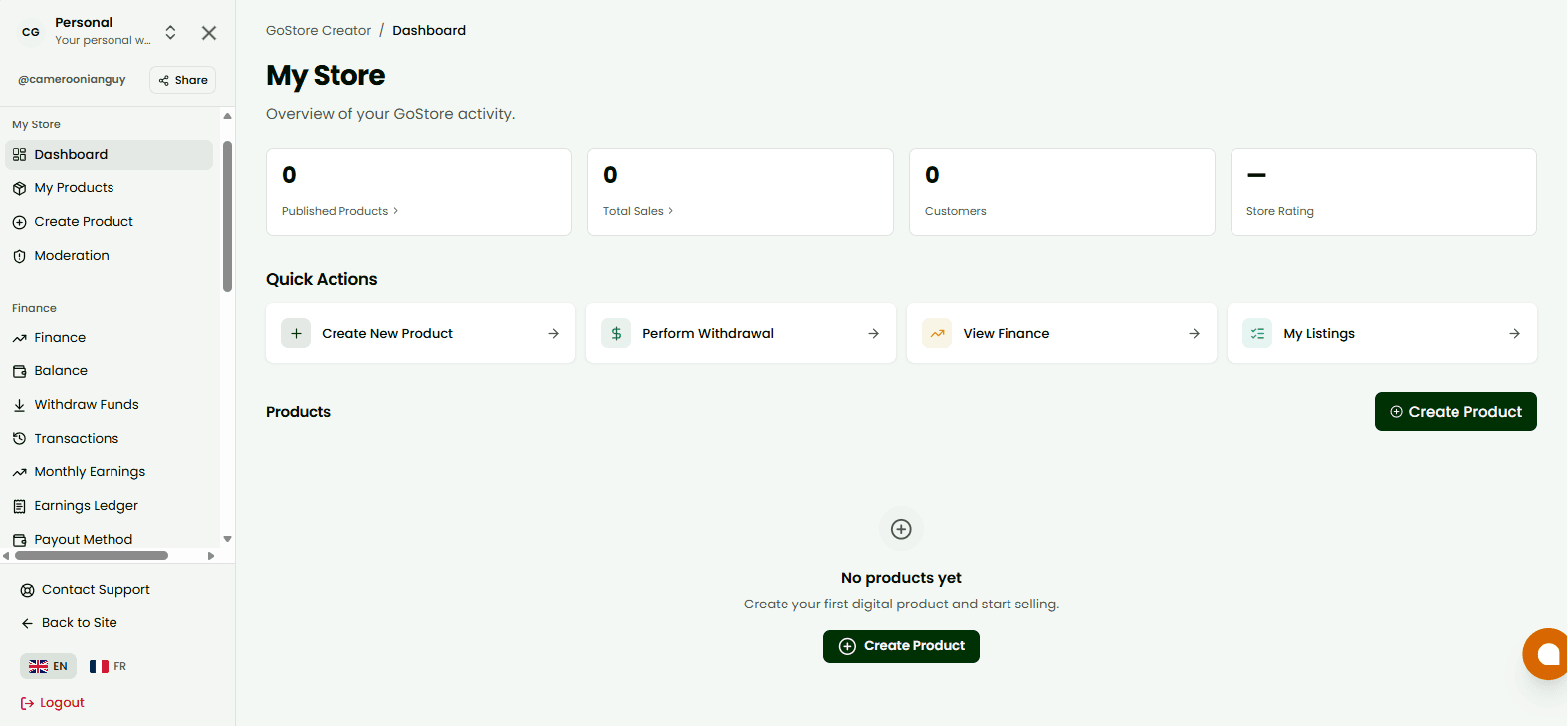
Navigate to the GoStore section from the main navigation under Opportunities, or visit the marketplace and click "Sell on GoStore". You must be logged in to access the creator dashboard. If you have not yet set up your creator store, you will be prompted to complete your store profile. Add a store name, description, logo, and banner to make your store look professional to buyers.

Creator dashboard home showing store stats and the Create Product button

Tip

A complete store profile with a logo and banner builds buyer trust and increases your product visibility in search results.

2

Create a New Product

From your creator dashboard, click "Create Product" or the "+" button. You will be taken to the product creation form, which is split into sections: Details, File, Pricing, and Media. You can save your progress at any time, Products remain in draft status until you explicitly publish them.

Product creation form showing the four-section tabs: Details, File, Pricing, Media
3

Fill in Product Details

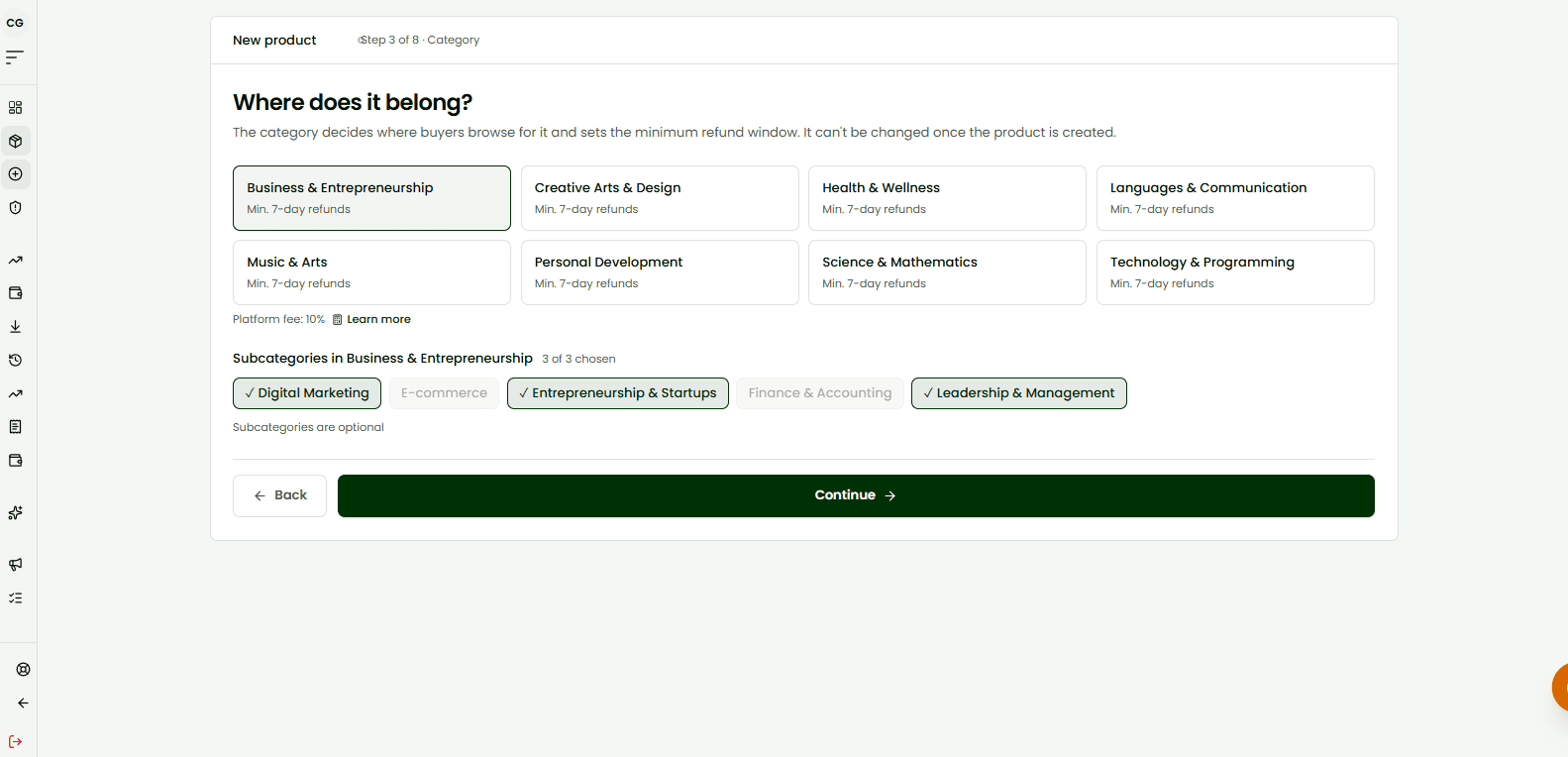
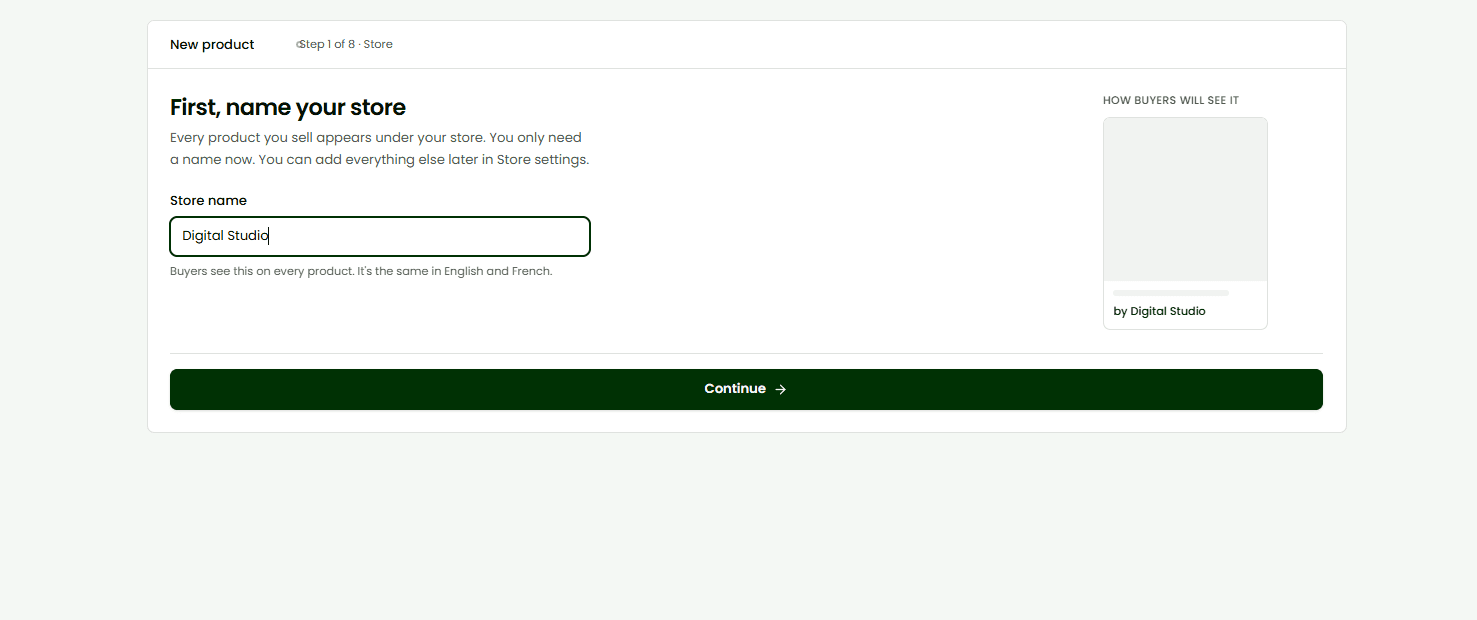
Enter your product name (clear and searchable), a full description explaining what buyers will receive, and choose the appropriate category and sub-category. Select the access mode: "Downloadable" if buyers receive a file to keep, or "Read Only" if the content is accessed online. Add relevant tags to improve discoverability in search.

Product details form showing name, description, category selector, and access mode toggle

Tip

Write your product name and description with search in mind. Use terms your target audience would type when looking for this type of content.

4

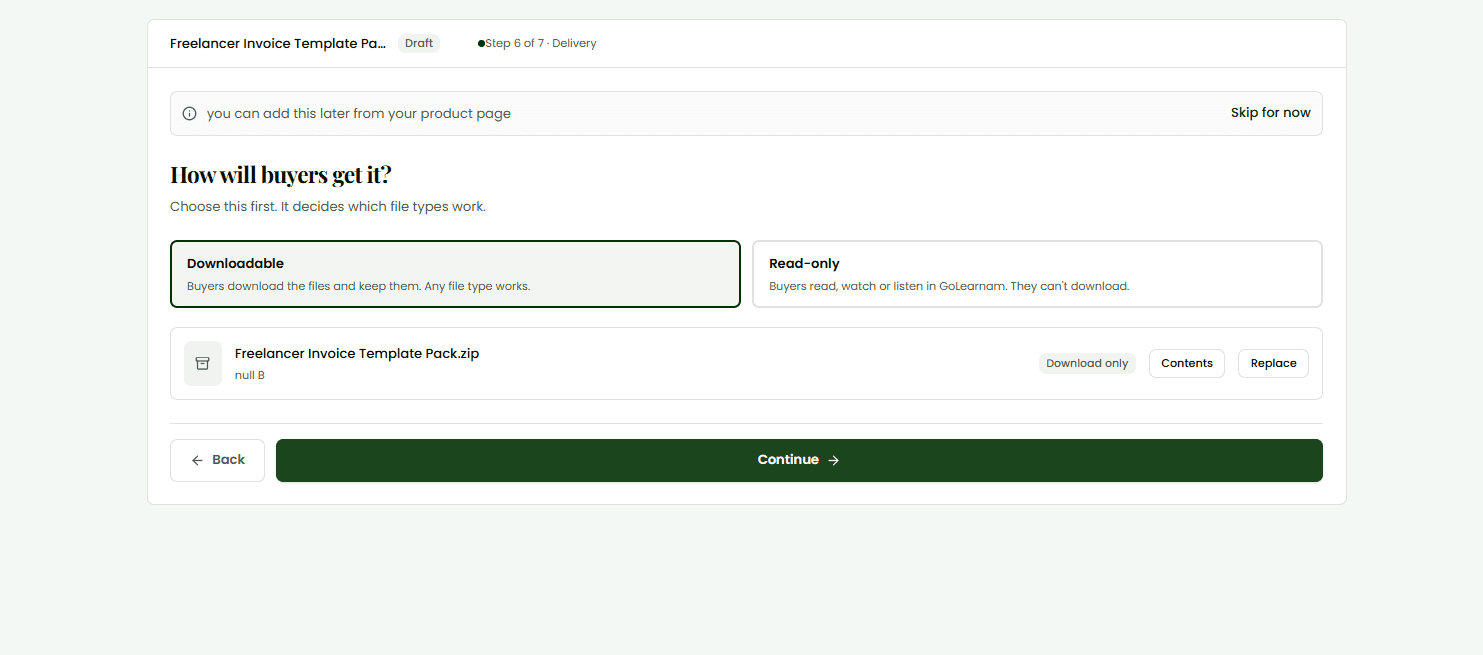
Upload Your Product File

For Downloadable products, upload the file buyers will receive after purchase. Supported formats include PDF, ZIP, MP4, MP3, DOCX, XLSX, and more. For Read Only products, provide a secure access URL where buyers will view the content. Files are stored securely and only accessible to verified purchasers. You can preview the uploaded file before saving.

File upload section showing drag-and-drop area with supported formats and progress bar

Tip

For downloadable products, ZIP multiple files together so buyers receive everything in one clean download. Name your files descriptively.

5

Set Your Price

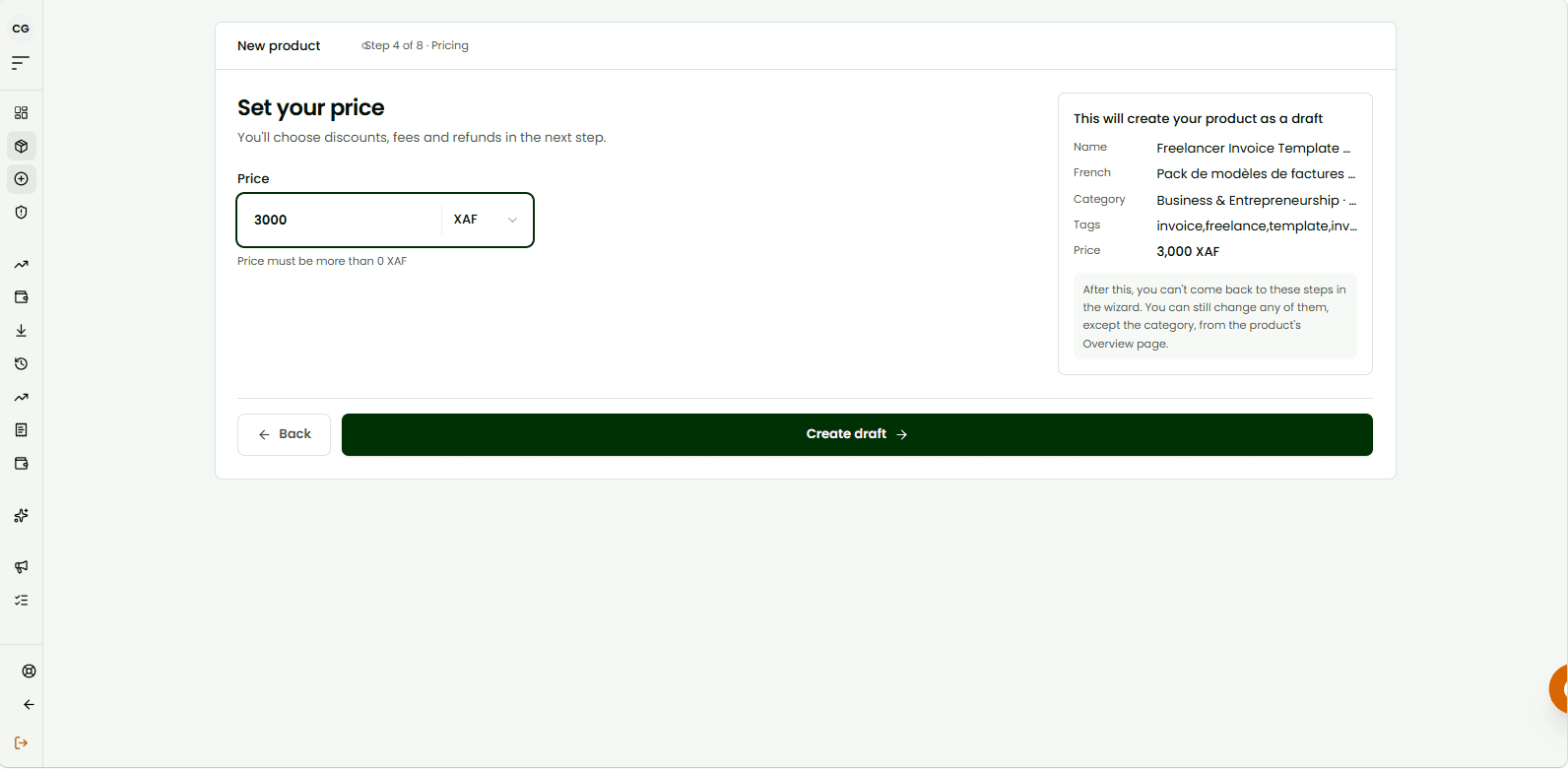
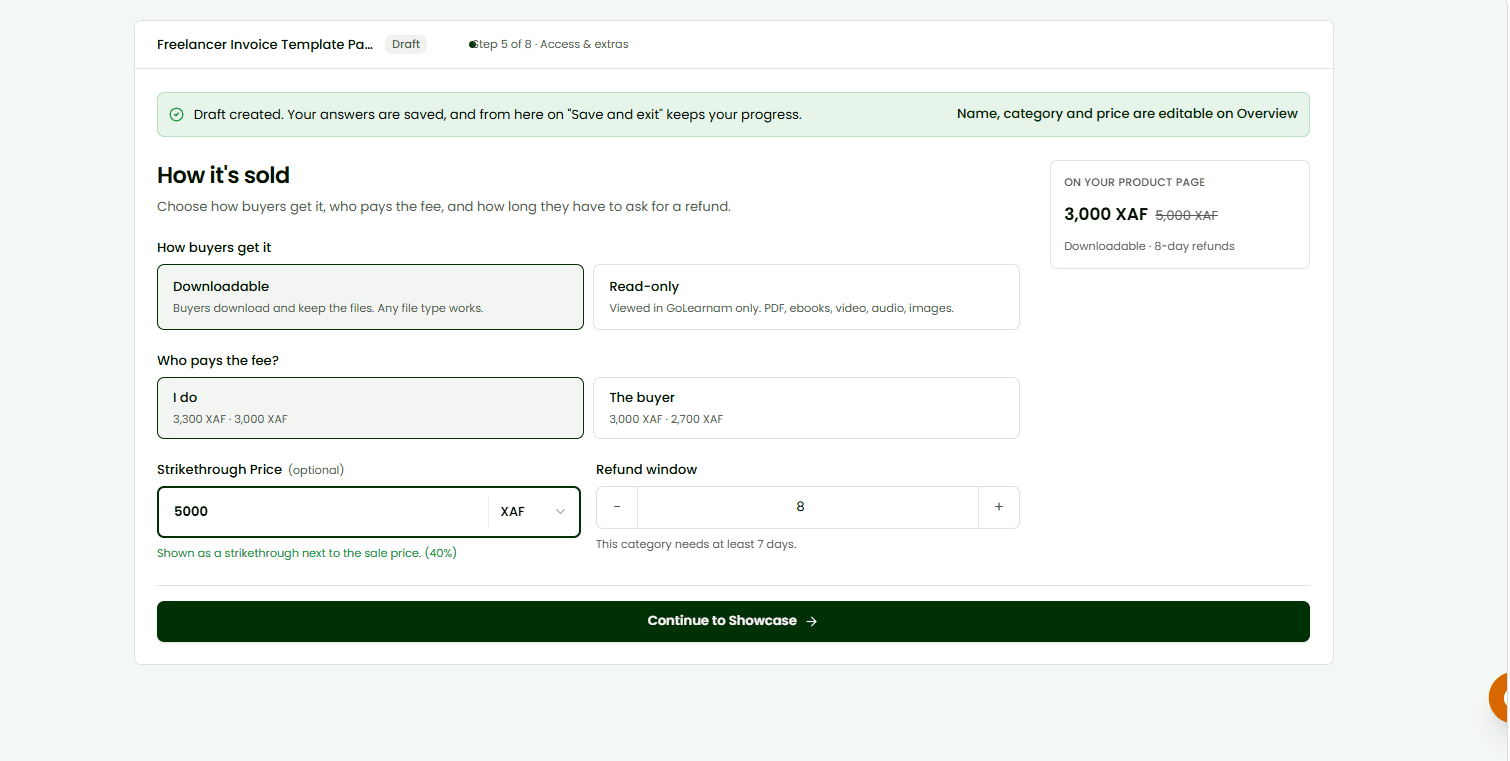
Enter your product price in XAF (Central African Franc). You can optionally set a compare-at price (the original crossed-out price) to show buyers a discount. The platform fee is automatically calculated and shown so you can see your net earnings per sale before publishing. There is no minimum price, but very low prices may reduce the perceived value of your product.

Pricing section showing price input, compare-at price, and net earnings calculation

Tip

Research similar products in the marketplace before setting your price. A compare-at price creates urgency and signals value.

6

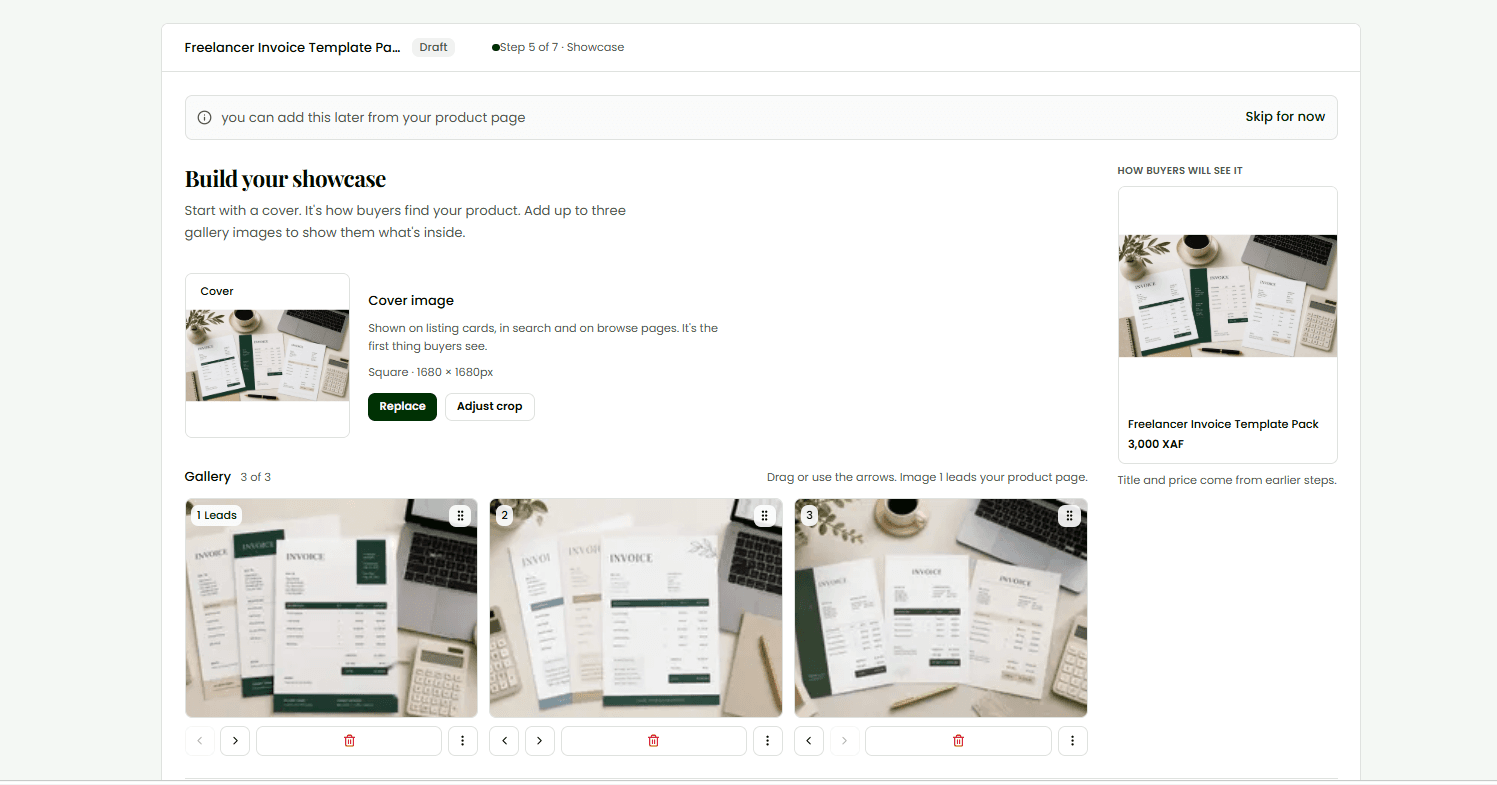
Add a Thumbnail

Upload a high-quality thumbnail image that represents your product. This is the first thing buyers see in search results and on your store page. Recommended size is 1280x720 px (16:9 ratio) at a minimum of 72 dpi. Use a clean, readable design with minimal text. Avoid stock photos that look generic, original visuals convert better.

Media section showing thumbnail upload area with a preview of how it will appear on the product card

Tip

Your thumbnail competes with every other product in the category. Bold text, strong contrast, and a single clear visual message work best.

7

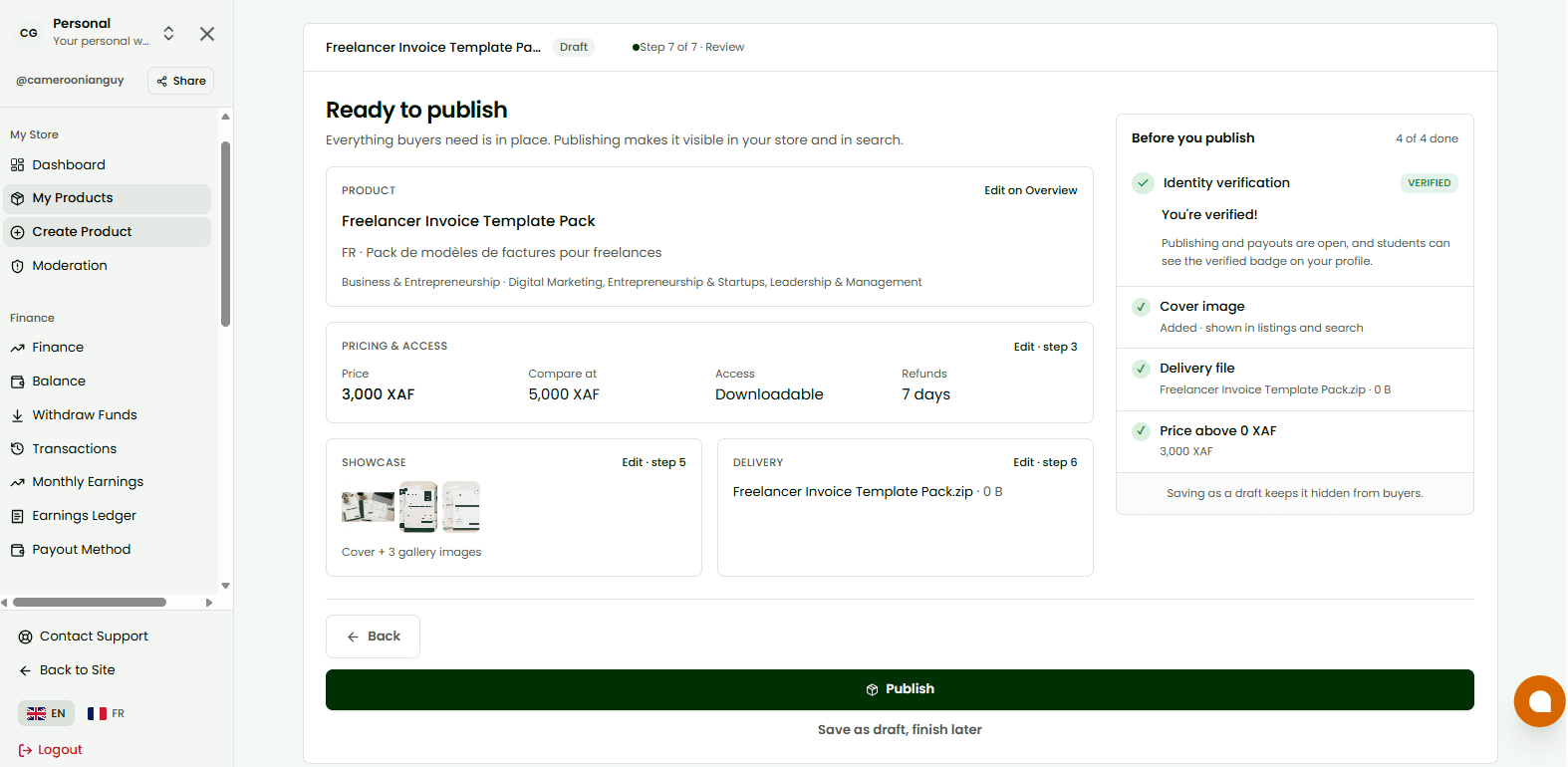
Review and Publish

Before publishing, review the product preview which shows exactly how your listing will appear to buyers on the card view and detail page. Check that all information is accurate, the file or link works correctly, and the thumbnail looks sharp. When ready, click "Publish Product". Your listing goes live immediately and will appear in the marketplace within a few minutes. You can edit or unpublish at any time from your creator dashboard.

Product review screen showing live preview with Publish button and estimated time to appear in marketplace

Previous Guide

Identity Verification

Trsuted By

Join thousands of professionals onGolearnamteaching and or growing their careers.Start Learning for FREE

Quick Links

  • Home
  • Courses
  • About Us
  • Contact
  • Articles

Marketplace

  • Browse GoStore
  • Sell Your Products
  • Become a Tutor
  • Host a Webinar
  • Guides

Discover

  • Browse Marketplace
  • Course Categories
  • Get Started
  • Sign In
  • Apply as Tutor

Legal and Accessibility

  • Terms of Service
  • Compliance
  • Privacy
  • Disclaimer
  • Refund Policy
  • Sitemap

Golearnam is an educational platform. The courses and materials provided are for informational and learning purposes only. We do not guarantee specific career outcomes or job placements.
© 2026 Kings Digital Group. All rights reserved.

Powered byKings Digital GroupKings Digital Group
Golearnam
LoginRegister for FREE
LoginGet Started
Explore All Courses
Shop All Digital Products
ArticlesPrivacy PolicyTerms of ServiceGetting StartedAll Guides
Our StoryMission & VisionOur TeamPartnersContact Us
Create WebinarsBecome a TutorSell ProductsAffiliate Program
View All PlansCreator OrganizationsBusiness PlansCreate an OrganizationTeams Overview
Language:
LoginRegister for FREE
Back to Guides

All Guides

Getting StartedHow to EnrollPayment GuideLearning a CourseQuizzes & AssessmentsEarning CertificatesBecoming a TutorCreating a CourseIdentity VerificationSelling on GoStore

On This Page

1. Access the Creator Dashboard2. Create a New Product3. Fill in Product Details4. Upload Your Product File5. Set Your Price6. Add a Thumbnail7. Review and Publish

Selling on GoStore

A step-by-step guide to listing your first digital product on the Golearnam marketplace and starting to earn.

6 min read

On This Page

  1. 1. Access the Creator Dashboard
  2. 2. Create a New Product
  3. 3. Fill in Product Details
  4. 4. Upload Your Product File
  5. 5. Set Your Price
  6. 6. Add a Thumbnail
  7. 7. Review and Publish
1

Access the Creator Dashboard

Navigate to the GoStore section from the main navigation under Opportunities, or visit the marketplace and click "Sell on GoStore". You must be logged in to access the creator dashboard. If you have not yet set up your creator store, you will be prompted to complete your store profile. Add a store name, description, logo, and banner to make your store look professional to buyers.

Creator dashboard home showing store stats and the Create Product button

Tip

A complete store profile with a logo and banner builds buyer trust and increases your product visibility in search results.

2

Create a New Product

From your creator dashboard, click "Create Product" or the "+" button. You will be taken to the product creation form, which is split into sections: Details, File, Pricing, and Media. You can save your progress at any time, Products remain in draft status until you explicitly publish them.

Product creation form showing the four-section tabs: Details, File, Pricing, Media
3

Fill in Product Details

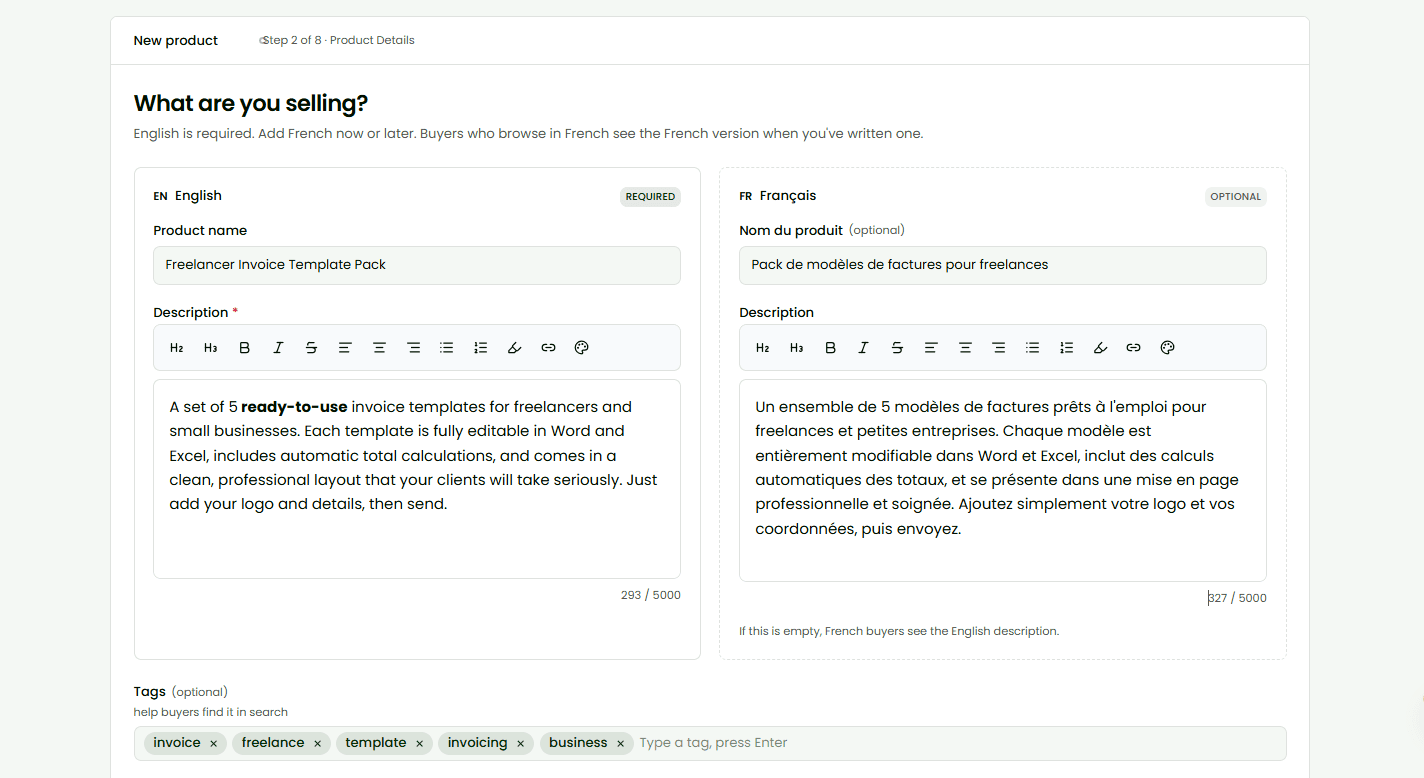
Enter your product name (clear and searchable), a full description explaining what buyers will receive, and choose the appropriate category and sub-category. Select the access mode: "Downloadable" if buyers receive a file to keep, or "Read Only" if the content is accessed online. Add relevant tags to improve discoverability in search.

Product details form showing name, description, category selector, and access mode toggle

Tip

Write your product name and description with search in mind. Use terms your target audience would type when looking for this type of content.

4

Upload Your Product File

For Downloadable products, upload the file buyers will receive after purchase. Supported formats include PDF, ZIP, MP4, MP3, DOCX, XLSX, and more. For Read Only products, provide a secure access URL where buyers will view the content. Files are stored securely and only accessible to verified purchasers. You can preview the uploaded file before saving.

File upload section showing drag-and-drop area with supported formats and progress bar

Tip

For downloadable products, ZIP multiple files together so buyers receive everything in one clean download. Name your files descriptively.

5

Set Your Price

Enter your product price in XAF (Central African Franc). You can optionally set a compare-at price (the original crossed-out price) to show buyers a discount. The platform fee is automatically calculated and shown so you can see your net earnings per sale before publishing. There is no minimum price, but very low prices may reduce the perceived value of your product.

Pricing section showing price input, compare-at price, and net earnings calculation

Tip

Research similar products in the marketplace before setting your price. A compare-at price creates urgency and signals value.

6

Add a Thumbnail

Upload a high-quality thumbnail image that represents your product. This is the first thing buyers see in search results and on your store page. Recommended size is 1280x720 px (16:9 ratio) at a minimum of 72 dpi. Use a clean, readable design with minimal text. Avoid stock photos that look generic, original visuals convert better.

Media section showing thumbnail upload area with a preview of how it will appear on the product card

Tip

Your thumbnail competes with every other product in the category. Bold text, strong contrast, and a single clear visual message work best.

7

Review and Publish

Before publishing, review the product preview which shows exactly how your listing will appear to buyers on the card view and detail page. Check that all information is accurate, the file or link works correctly, and the thumbnail looks sharp. When ready, click "Publish Product". Your listing goes live immediately and will appear in the marketplace within a few minutes. You can edit or unpublish at any time from your creator dashboard.

Product review screen showing live preview with Publish button and estimated time to appear in marketplace

Previous Guide

Identity Verification

Trsuted By

Join thousands of professionals onGolearnamteaching and or growing their careers.Start Learning for FREE

Quick Links

  • Home
  • Courses
  • About Us
  • Contact
  • Articles

Marketplace

  • Browse GoStore
  • Sell Your Products
  • Become a Tutor
  • Host a Webinar
  • Guides

Discover

  • Browse Marketplace
  • Course Categories
  • Get Started
  • Sign In
  • Apply as Tutor

Legal and Accessibility

  • Terms of Service
  • Compliance
  • Privacy
  • Disclaimer
  • Refund Policy
  • Sitemap

Golearnam is an educational platform. The courses and materials provided are for informational and learning purposes only. We do not guarantee specific career outcomes or job placements.
© 2026 Kings Digital Group. All rights reserved.

Powered byKings Digital GroupKings Digital Group