A complete walkthrough of the verification process on Golearnam, covering what you'll need and what to expect at every step, wherever you're based.
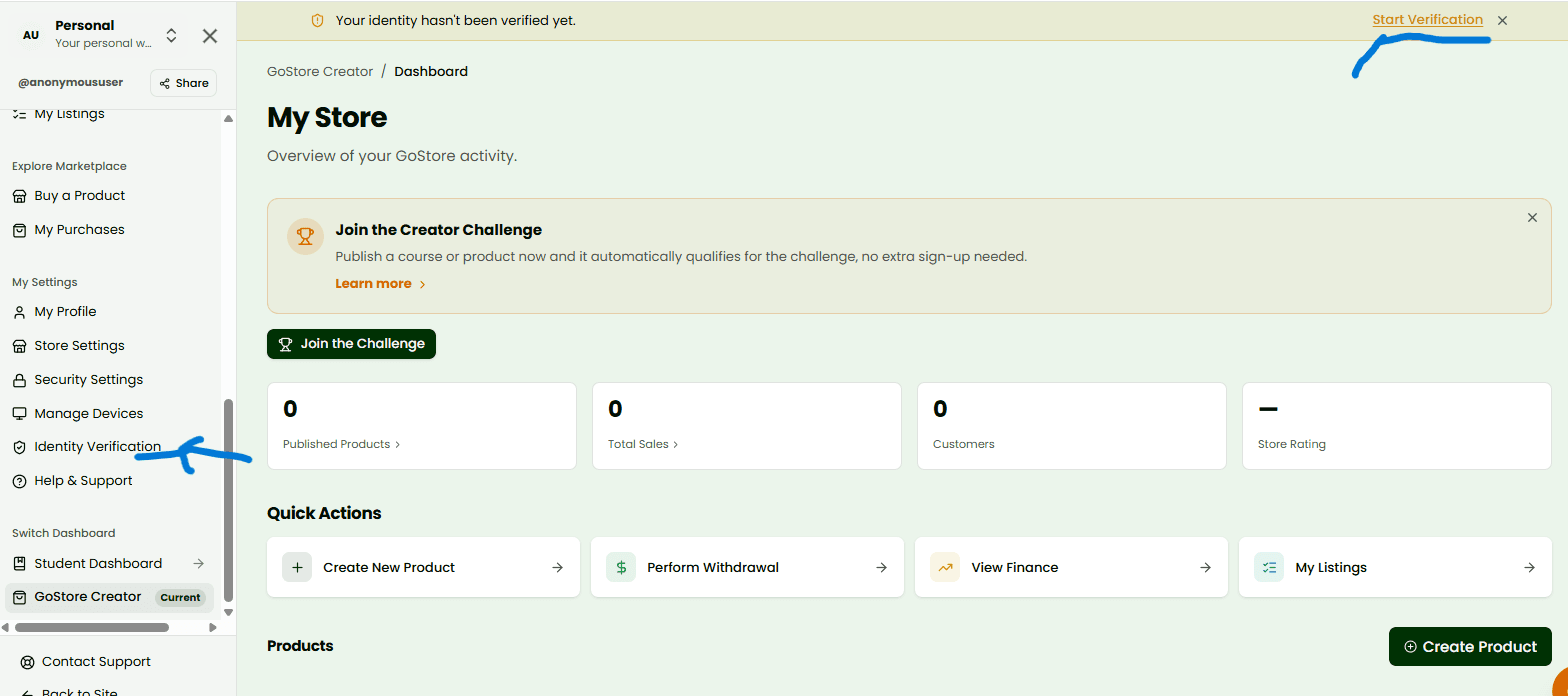
You can start your verification from two places: the sidebar navigation in your dashboard, or a reminder banner that appears at the top of your pages until you're verified. Look for "Identity Verification" in the sidebar menu, or click the banner's "Start Verification" link if you see one.

Tip
You don't have to verify right away. Golearnam will remind you when a specific action, like publishing a course or requesting a payout, actually needs it.
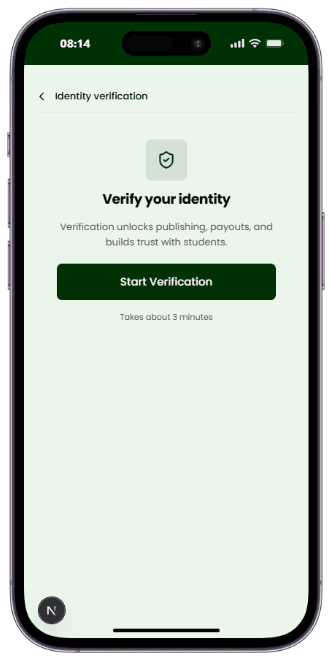
Clicking the link takes you to your verification status page. If you haven't started yet, you'll see a simple prompt explaining what verification unlocks: publishing, payouts, and a verified badge on your profile, with a "Start Verification" button. The whole process takes about 3 minutes.

Tip
This same page is where you'll come back to check your status later, so it's worth remembering how to get here.
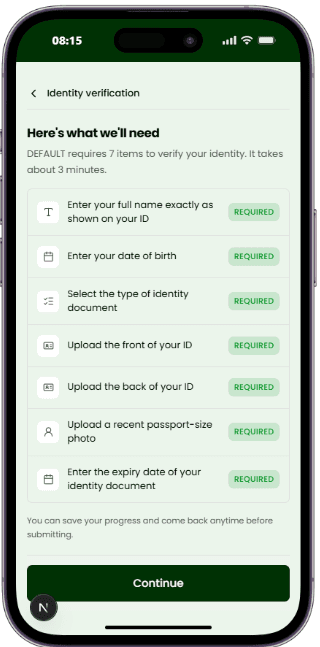
Before anything is submitted, you'll see exactly what's needed for where you're based: things like your full name, date of birth, ID document type and expiry date, and photos of your document plus a passport-size photo of yourself. Some countries have one or two extra fields, like a national ID number. Every item is marked Required, and nothing is hidden until the last step.

Tip
Golearnam determines your requirements from your country automatically, so you don't need to select anything here.
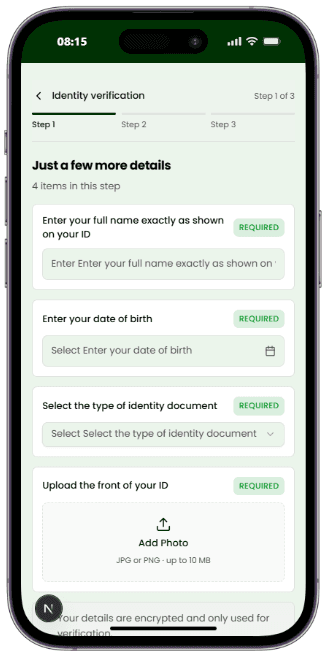
The first step asks for your personal and document details: your full name exactly as it appears on your ID, your date of birth, the type of ID you're using, and any extra field your country requires, such as a national ID number. Fill these in and press Continue. You can't move on until every required field is filled.

Tip
Type your name exactly as printed on your document, including accents and middle names. Small mismatches are the most common reason a review takes longer.
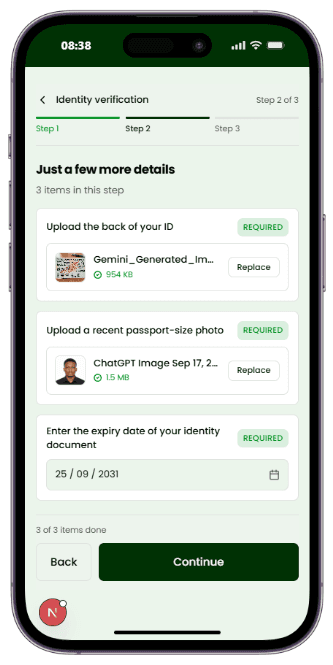
The second step asks for your photos: the front of your ID, the back of your ID where it applies, and a recent passport-size photo of yourself. Tap "Add Photo" on each card to take a picture or choose one from your gallery. Each one uploads immediately and shows a checkmark once it's done.

Tip
Use good lighting and lay your ID flat with all four corners visible. Blurry or cropped photos are the top reason verifications get rejected.
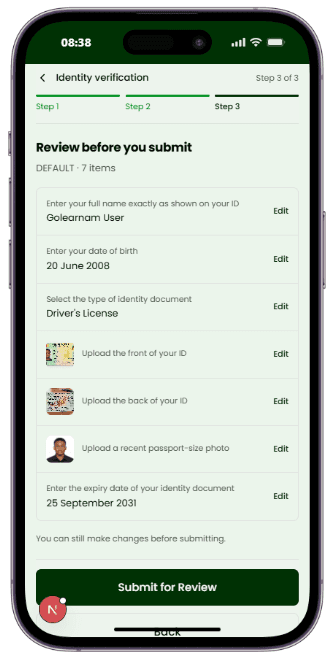
The final step shows everything you entered and uploaded in one list: your details, your document type, and thumbnails of your photos. Each row has an Edit link that takes you straight back to fix it if something's wrong.

Tip
This is your last chance to fix a typo or replace a blurry photo before it goes to a human reviewer, so take a moment to check it.
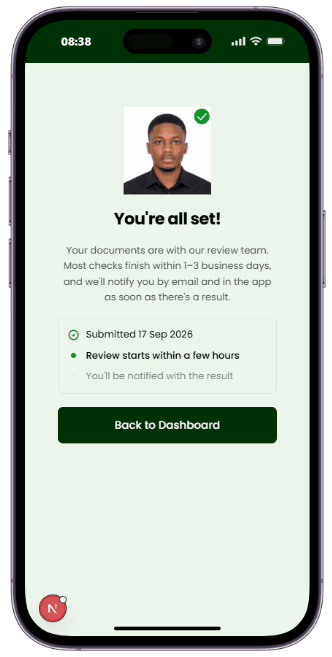
Once everything looks right, tap "Submit for Review". You'll see a confirmation screen letting you know your documents are with the review team, and that you'll be notified by email and in the app as soon as there's a result.

Tip
Submitting locks your details and photos for review. If you need to change something after this point, wait for the result first.
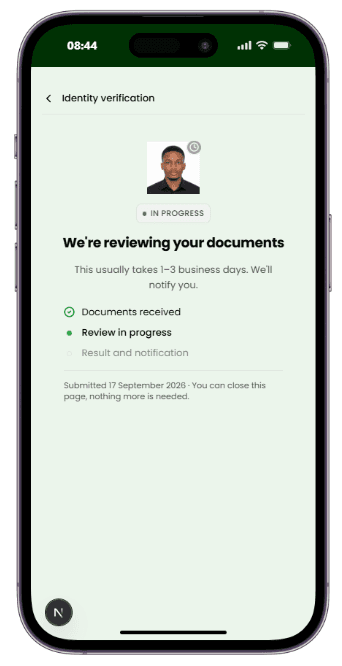
Most reviews finish within 1–3 business days. During this time, your status page shows "We're reviewing your documents" with a simple checklist: documents received, review in progress, and result pending. There's nothing else for you to do at this stage.

Tip
You can safely close the app and come back later. Nothing about your submission is lost while it's under review.
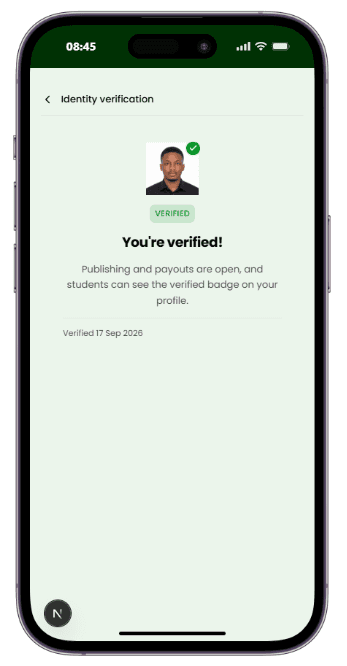
Once approved, your status page updates to show a green "Verified" badge, along with the date you were verified. Publishing, payouts, and the verified badge on your public profile are all unlocked immediately.

Tip
Your verification stays valid unless your ID expires. Golearnam will let you know well before that happens.
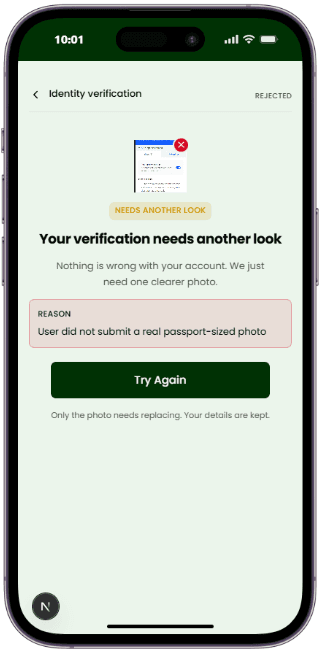
Occasionally a reviewer will ask for a clearer photo or a correction. This doesn't mean anything is wrong with your account. Your status page will explain exactly what needs another look, and clicking through takes you straight back into the flow with everything else already saved.

Tip
Only the flagged item needs to change. You won't have to re-enter details or re-upload documents that were already accepted.