Creating a Course
A step-by-step guide for tutors on how to create, structure, and publish a course on Golearnam.
On This Page
Access Course Creation
From your Tutor Dashboard, click 'Create Course' in the sidebar under Course Management. You need at least one approved tutor application in a category before you can create courses. If you don't have any approved categories, you'll be prompted to apply for one first. Once you have an approved category, the course creation form will load.
Tip
You can only create courses in categories where your tutor application has been approved. Check your Applications page to see your approval status.
Select a Category
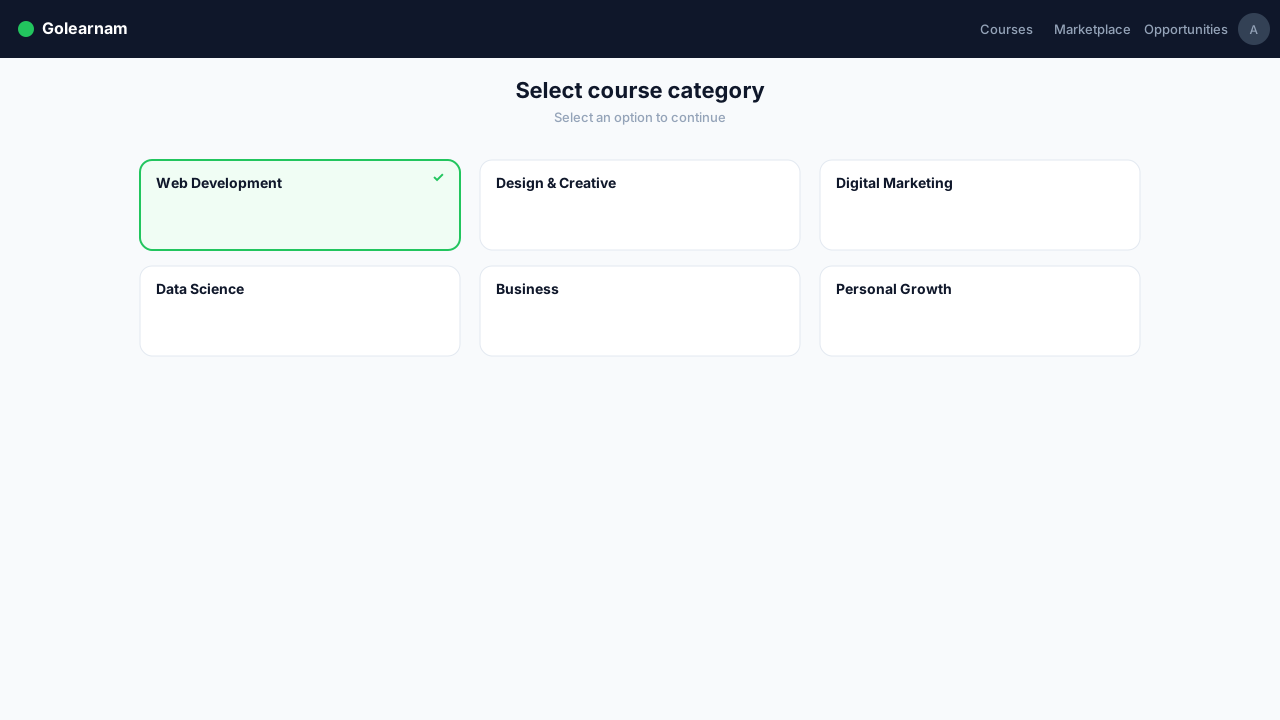
The course creation form shows your approved teaching categories as visual cards with thumbnails. Click on the category your new course belongs to. If you're approved in multiple categories, you'll see all of them listed. A checkmark appears on the selected category. You can only choose one category per course.
Fill Course Details
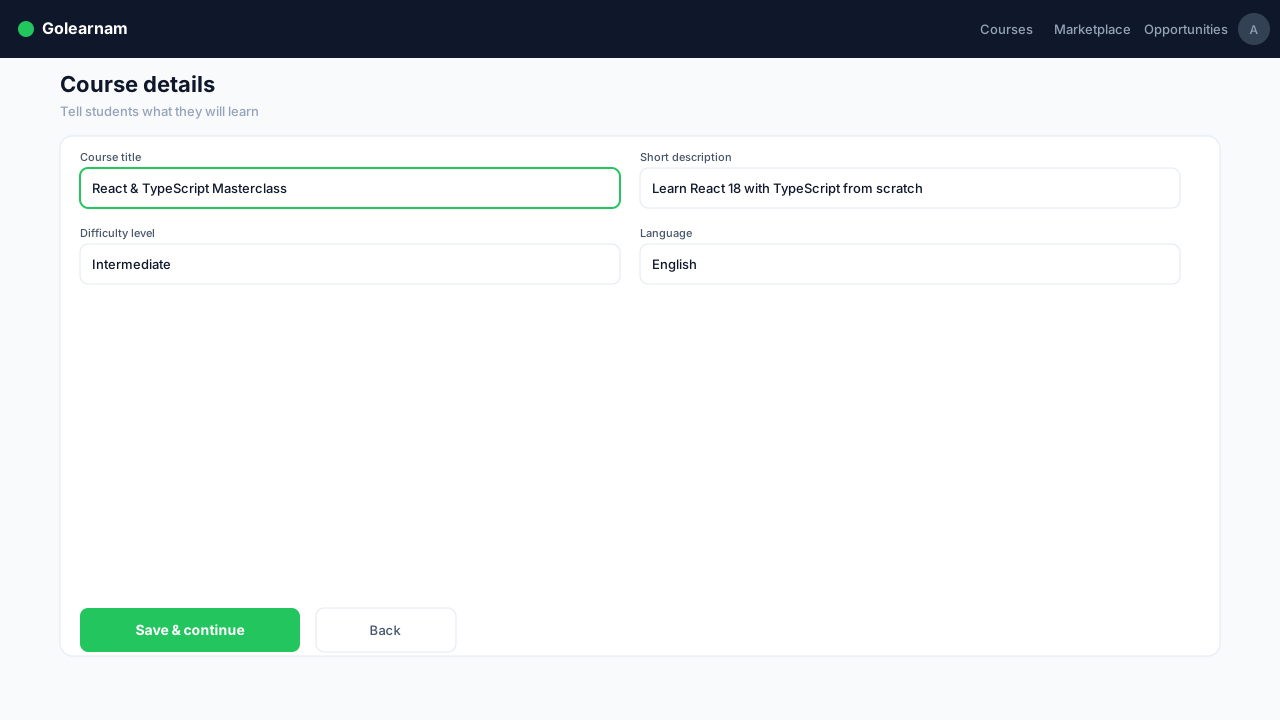
On the right side of the form, fill in the course basics. Choose the course language (English or French), enter a clear and descriptive title (up to 200 characters), and write a brief course description (up to 500 characters). The title and description are what students will see when browsing courses, so make them compelling and informative.
Tip
Write a title that clearly communicates what students will learn. Avoid vague titles. Be specific about the skills or outcomes.
Configure Course Settings
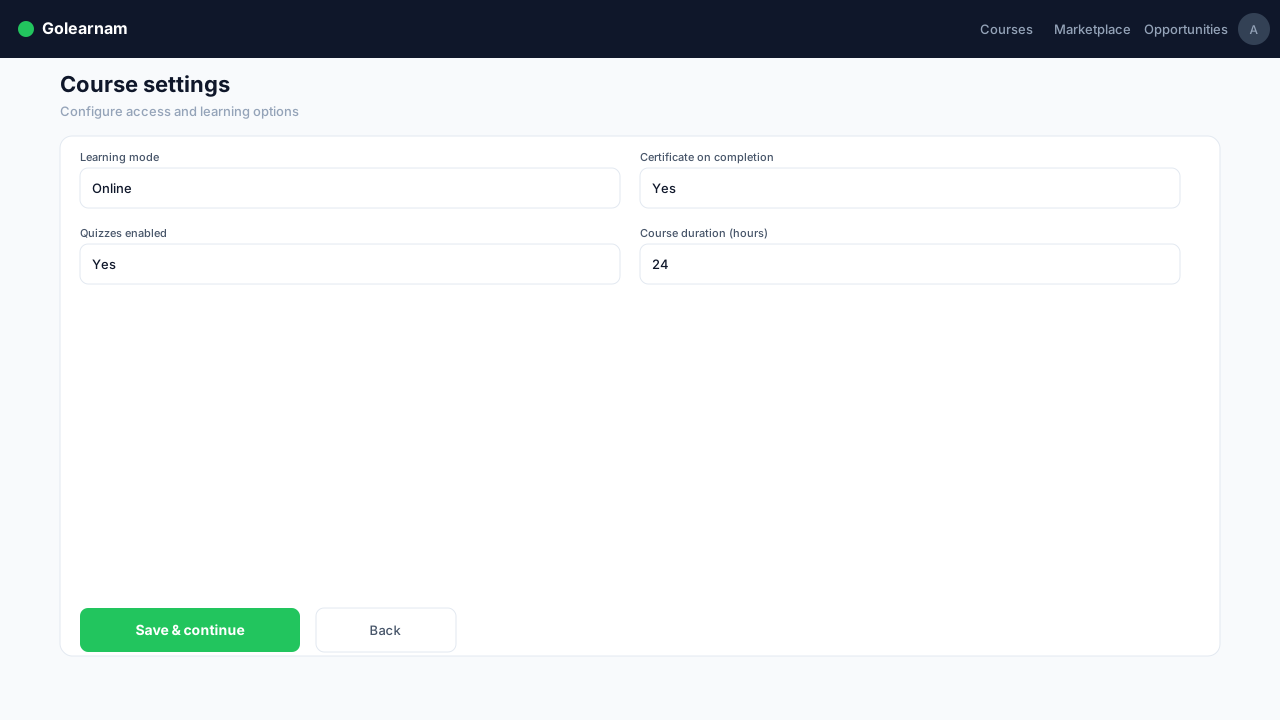
After creating the draft, you'll be taken to the course detail page. Here you can expand the 'About This Course' section to explain the learning outcomes and benefits in detail. Add relevant tags for discoverability, list prerequisites so students know what's expected, set the number of installments (payment splits), and configure pricing. Upload a thumbnail image that represents your course.
Add Installments & Lessons
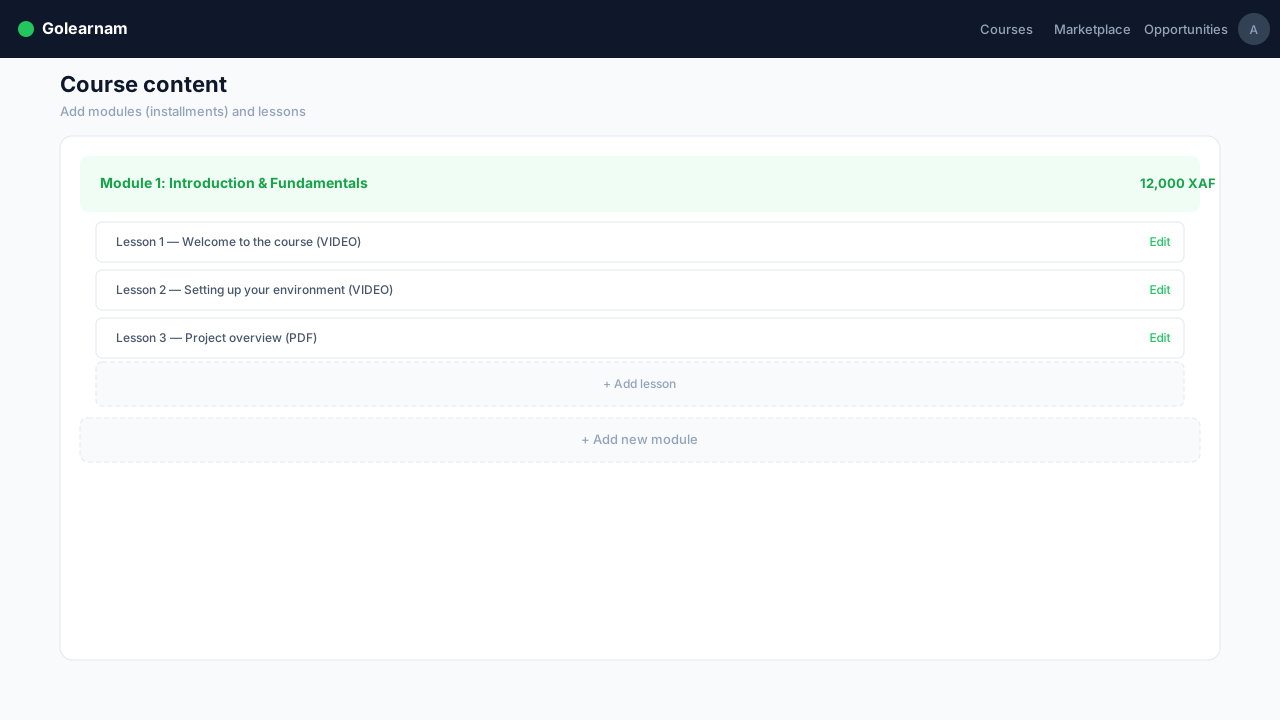
Navigate to the Installments section to structure your course content. Create installments, then add lessons to each one. For each lesson, choose the content type: Video (upload or link a video), PDF (upload a document), or Link (reference an external resource). Add a title, description, and the content itself. Lessons appear in order within each installment.
Tip
Organize lessons in a logical learning sequence. Start with foundational topics and build toward more advanced concepts in later installments.
Add Quizzes & Publish
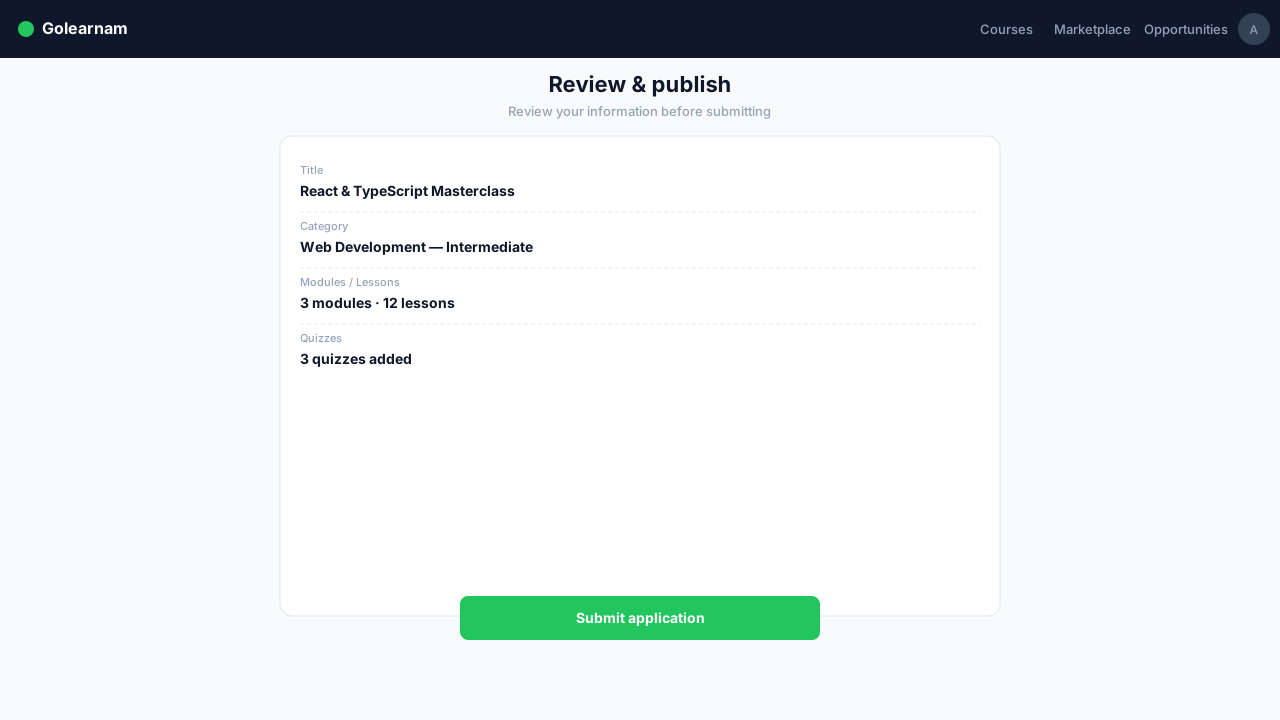
For lessons that need assessments, navigate to the lesson's quiz section to create quizzes. Add multiple-choice questions with 4 options each, mark the correct answer, and set the quiz title and description. Students need 70% to pass. Once your course content is complete, all installments, lessons, and quizzes are in place. Review everything and publish your course to make it available to students.