Identity Verification
How to verify your identity on Golearnam to unlock full platform features, including payouts and enhanced account trust.
On This Page
Go to Identity Verification Settings
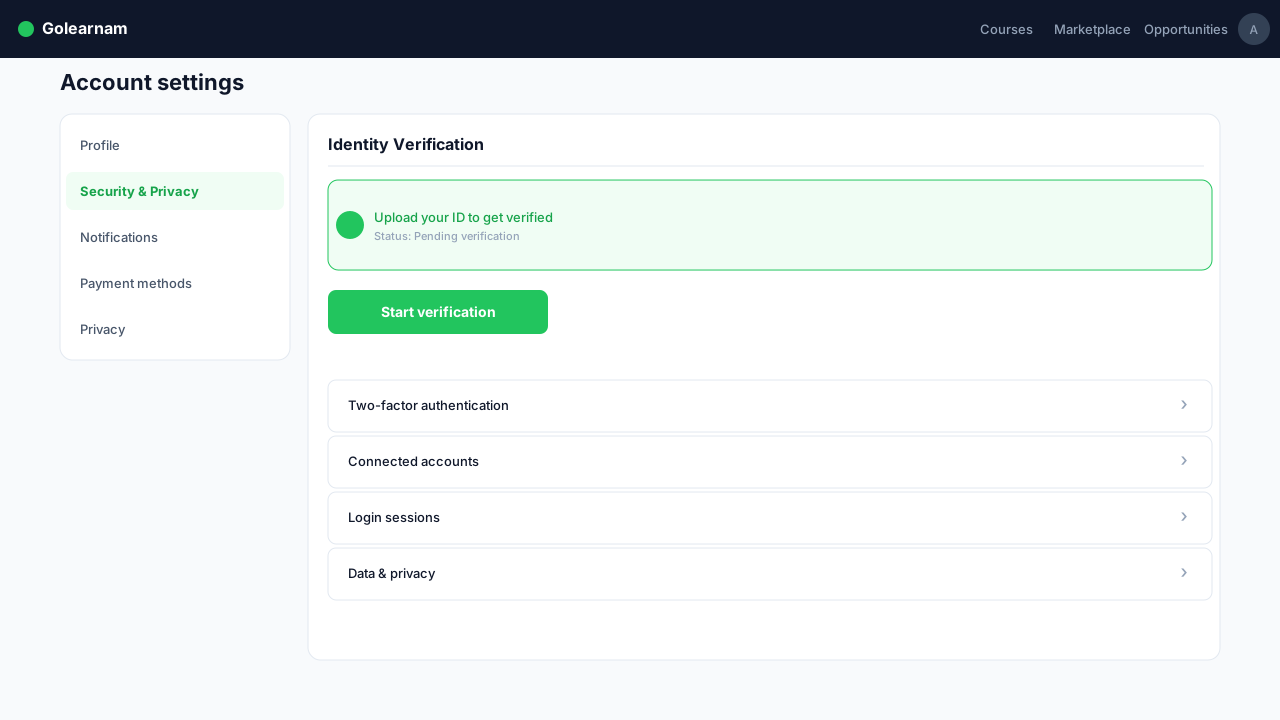
Log in to your account and navigate to your profile settings. Look for the "Identity Verification" section under Security & Privacy. You will see your current verification status and a prompt to start the process if you have not already done so. Verified accounts gain a trust badge visible to other users and unlock withdrawal features.
Tip
Complete your profile (name, photo, bio) before starting verification, it speeds up the review process.
Choose Your Document Type
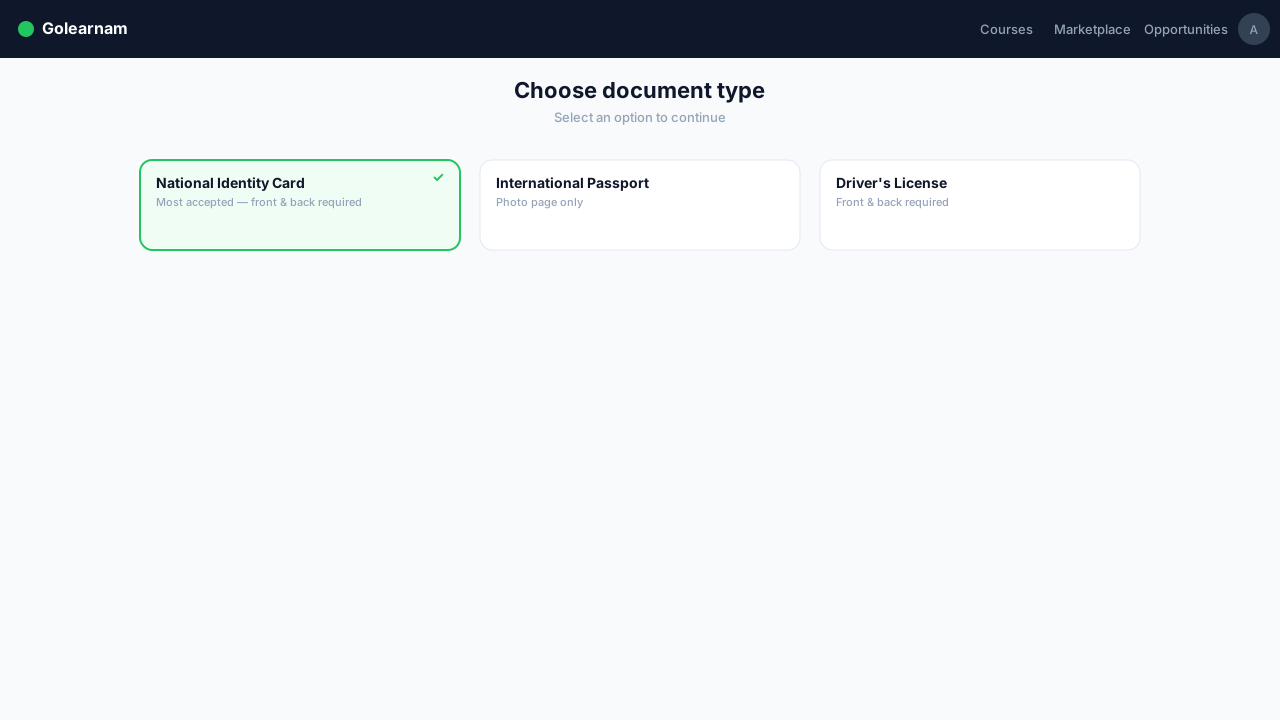
Select the type of government-issued document you will use to verify your identity. Accepted document types include: National Identity Card, International Passport, and Driver's License. Choose the document you have readily available and whose information exactly matches your account name. Each document type has specific upload requirements, the system will guide you accordingly.
Tip
Make sure the document is valid (not expired) and the name matches your account registration name exactly.
Upload the Front of Your Document
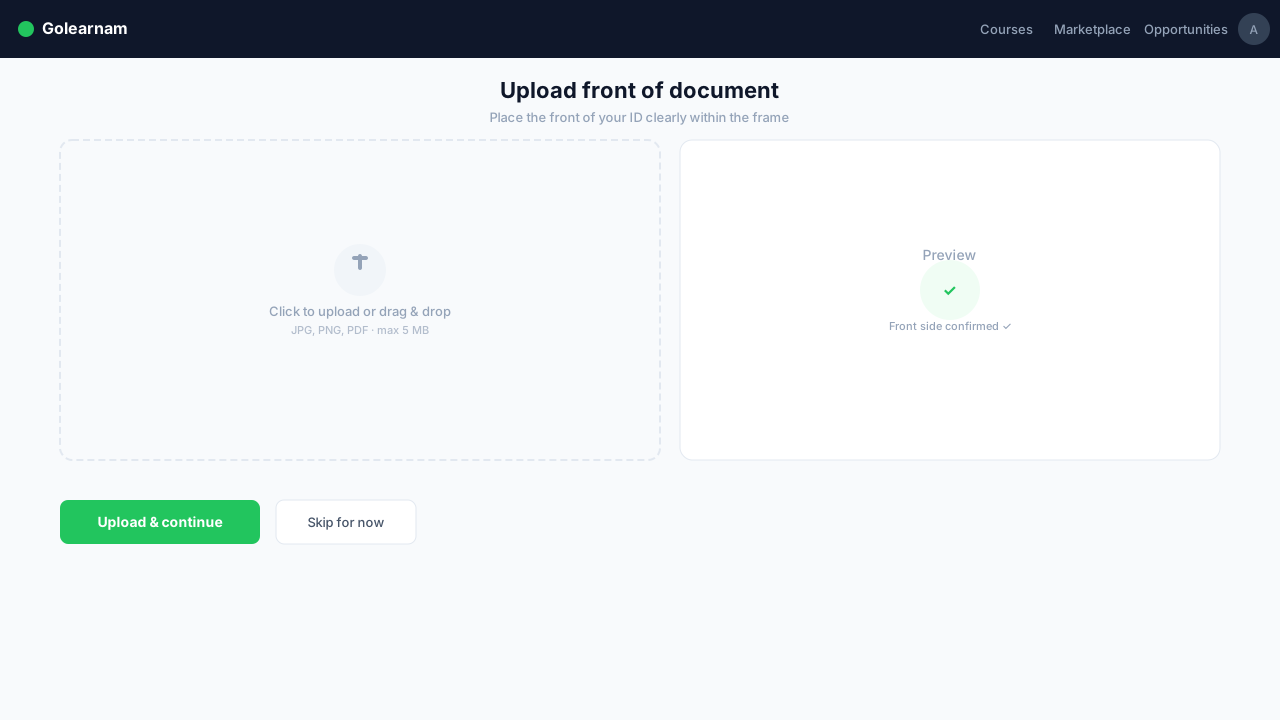
Take a clear photo or scan of the front side of your chosen document. The image must show all four corners of the document, with no glare, blurring, or cropping. Supported formats are JPG, PNG, and PDF. The file size must not exceed 5 MB. Once uploaded, the system displays a preview so you can confirm the image is legible before proceeding.
Tip
Place your document on a dark flat surface and photograph it in good lighting to avoid reflections.
Upload the Back of Your Document
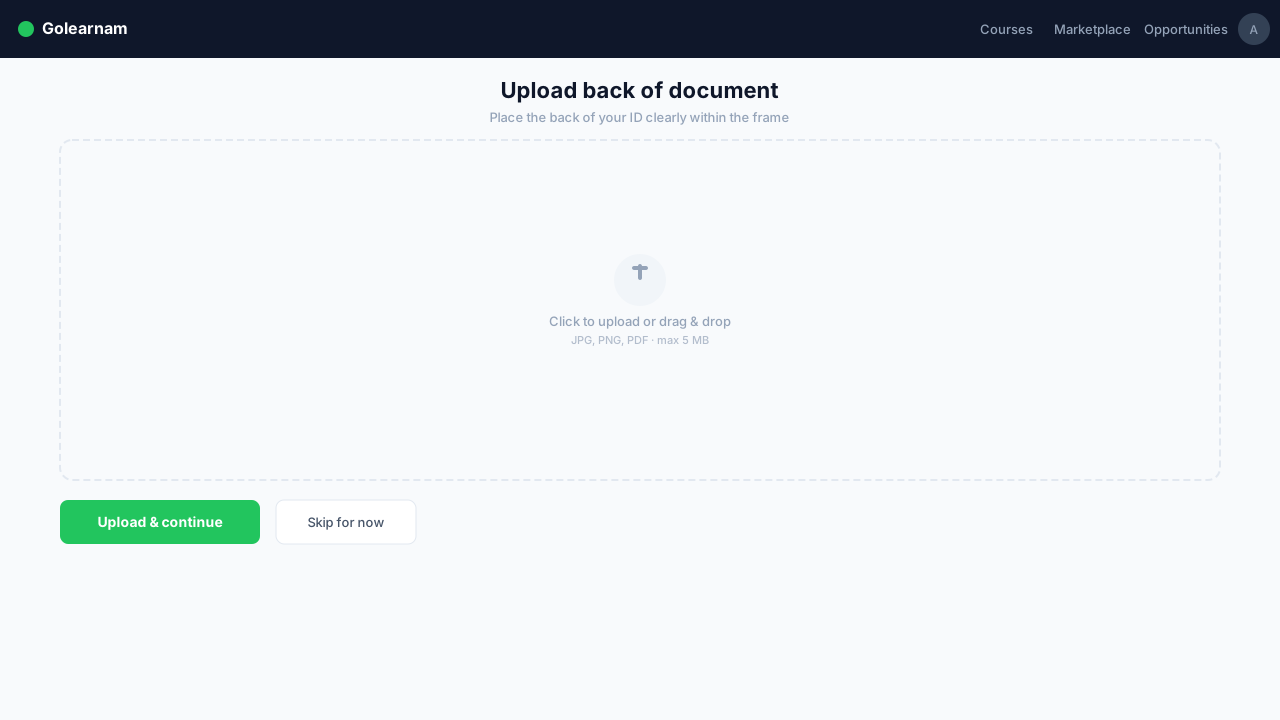
If your document has a back side containing relevant information (such as a National ID or Driver's License), you will be prompted to upload it as well. Passports typically only require the photo page. Follow the same quality guidelines as the front; clear, well-lit, with all corners visible. This step may be skipped automatically if your document type does not require a back side.
Upload a Selfie for Liveness Check
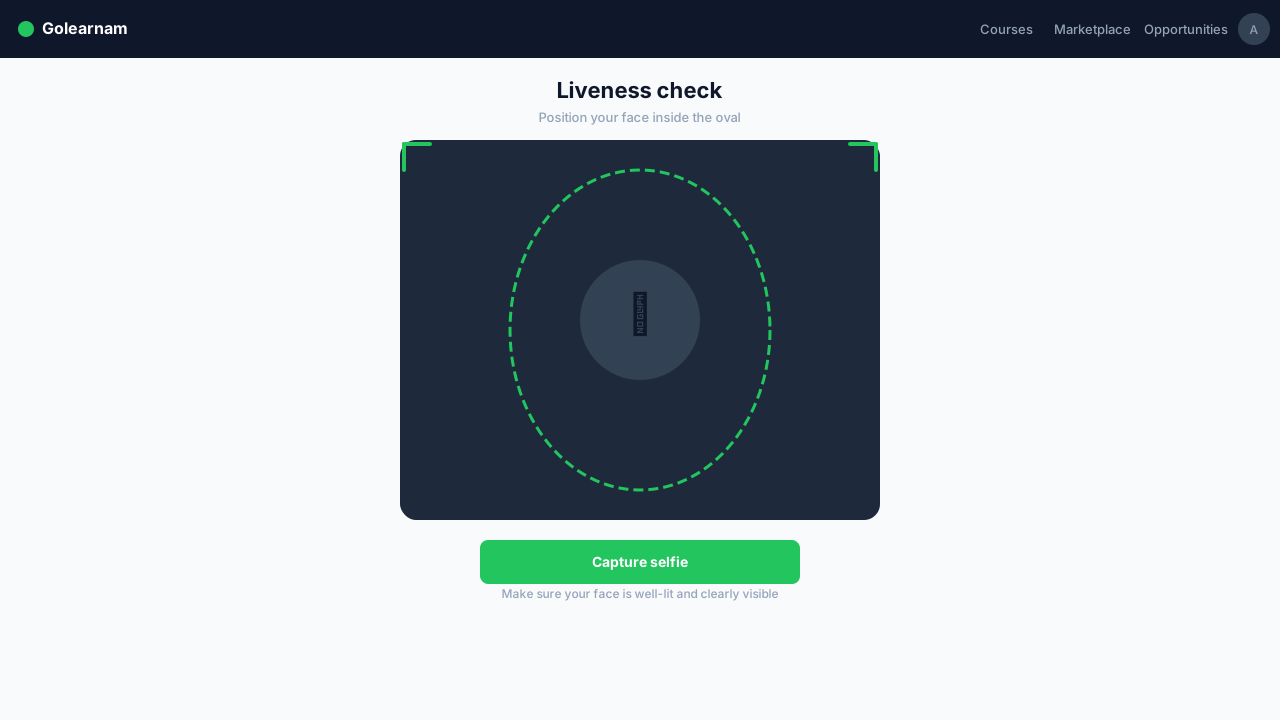
To confirm that the document belongs to you, you must upload a clear selfie photo. Hold the document next to your face if prompted, or upload a plain face photo depending on the verification level required. Your face must be fully visible, well-lit, and unobscured by sunglasses, hats, or masks. The photo must not be cropped or filtered.
Tip
Use your front-facing camera in natural light. Avoid heavy filters or beauty mode. The system needs to match your face to the document photo.
Submit and Await Review
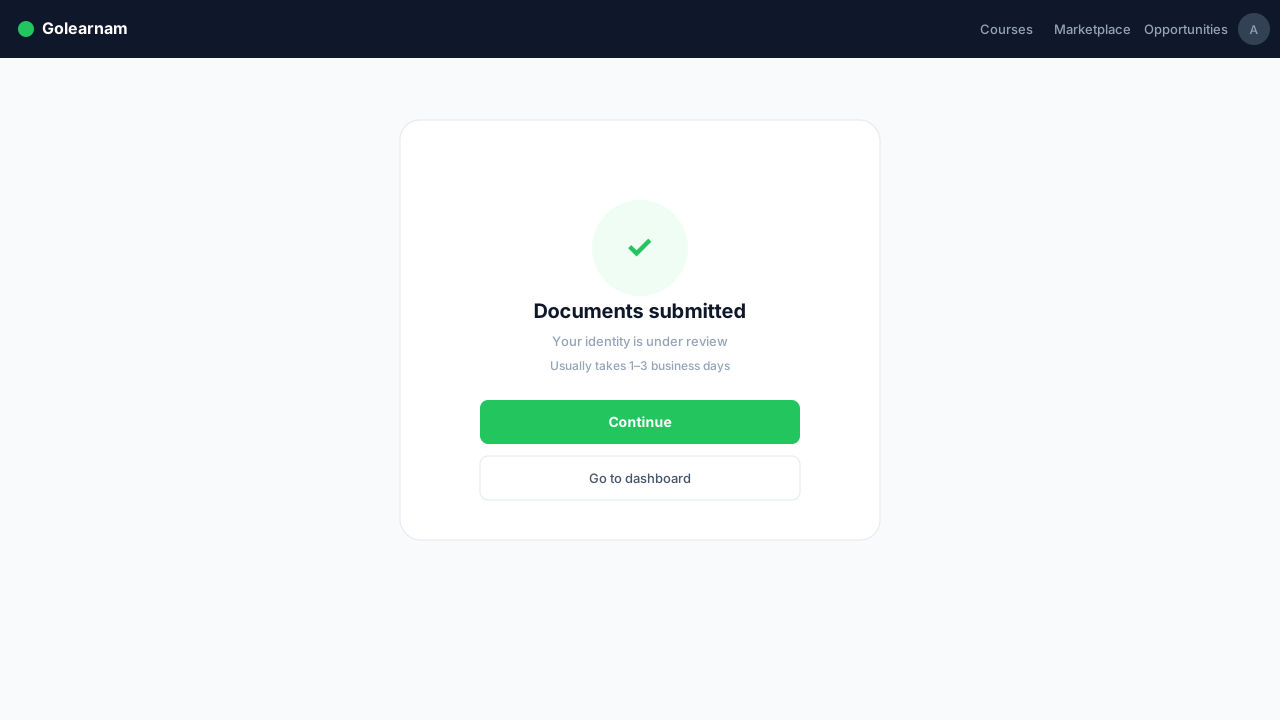
Review all uploaded images on the summary screen before submitting. Once you click "Submit for Review", your documents enter the review queue. The review process typically takes 1–3 business days. You will receive an email notification once your verification is approved or if additional information is needed. You can check your verification status at any time from the same settings page.