Learn, Teach, Earn

Golearnam
Join Ongoing Creator ChallengeJoin Ongoing
LoginRegister for FREE
Join Ongoing Creator Challenge
Explore All CoursesHealth, Medicine & Wellness8Digital Marketing & E-Commerce5Business, Finance & Law5Technology & Development2AI & Artificial Intelligence2Creative Arts, Design & Media2Lifestyle, Personal Development & Hobbies1Education, Training & Language1Real Estate & Construction0Farming, Agriculture & Environment0Trades, Industrial & Manual Skills0Logistics, Supply Chain & Operations0
Shop All Digital ProductsMarriage And Relationship12Health, Medicine & Wellness15Lifestyle, Personal Development & Hobbies13Trades, Industrial & Manual Skills0Farming, Agriculture & Environment3Real Estate & Construction0Logistics, Supply Chain & Operations0Digital Marketing & E-Commerce11Education, Training & Language15Cooking & Culinary Arts /3Artificial Intelligence(AI)1Business Finance & Legal9Creative Arts, Design & Media4Technology & Development1
Find a Tutor or CreatorFind a TutorFind a Creator
Guides & TutorialsLatest Articles & Updates
Privacy PolicyTerms of ServiceSupported Countries
Our StoryMission & VisionOur TeamPartnersContact Us
Create WebinarsBecome a TutorSell ProductsAffiliate ProgramFor CreatorsFor OrganizationsFor Businesses
View All PlansEarnings CalculatorSupported CountriesCreator OrganizationsBusiness PlansCreate an OrganizationTeams Overview
LoginRegister for FREE

Trsuted By

Join thousands of professionals onGolearnamteaching and or growing their careers.Start Learning for FREE

Quick Links

  • Home
  • For Creators
  • For Organizations
  • For Businesses
  • Courses
  • About Us
  • Contact
  • Articles

Marketplace

  • Browse GoStore
  • Sell Your Products
  • Become a Tutor
  • Host a Webinar
  • Guides
  • Supported Countries

Discover

  • Browse Marketplace
  • Course Categories
  • Get Started
  • Sign In
  • Apply as Tutor

Legal and Accessibility

  • Terms of Service
  • Compliance
  • Privacy
  • Disclaimer
  • Refund Policy
  • Sitemap

Golearnam is an educational platform. The courses and materials provided are for informational and learning purposes only. We do not guarantee specific career outcomes or job placements.

© 2026 Kings Digital Group. All rights reserved.

FacebookInstagramTikTokYouTubeWhatsApp
Powered byKings Digital GroupKings Digital Group
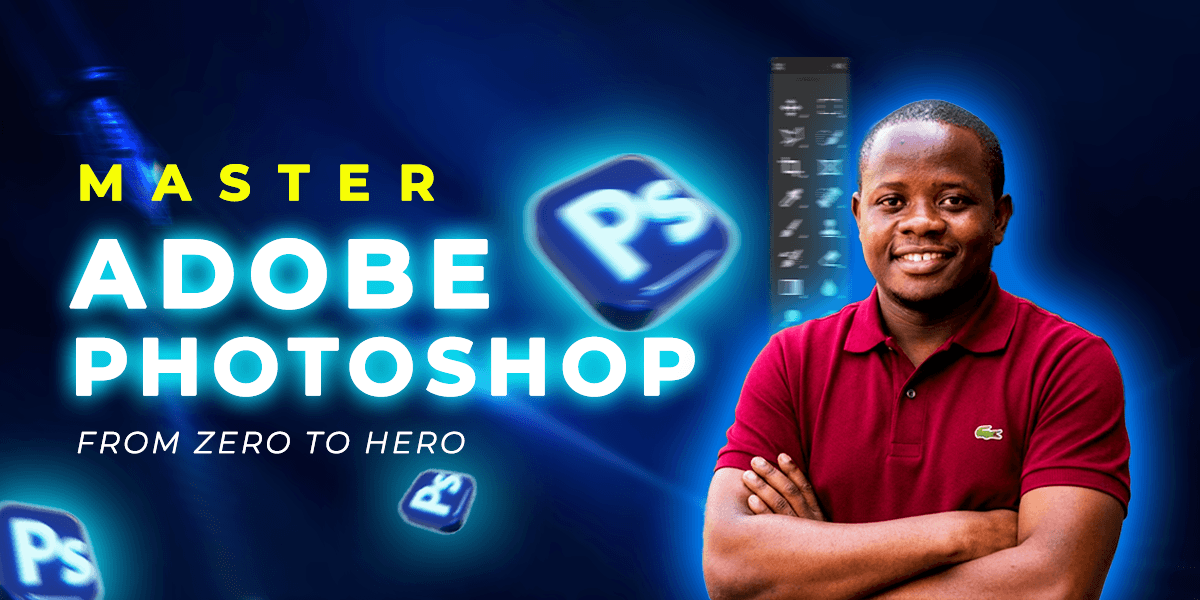
ADOBE PHOTOSHOP : FROM ZERO TO HERO
Certificate included

ADOBE PHOTOSHOP : FROM ZERO TO HERO

A course byTome SefeTome Sefe·BRAND CONSULTANT AND WEB DESIGNER
0Students
3Installments
Online
FCFA 20,000
  • Self-paced learning. You study on your schedule
  • Lifetime access to all course content
  • Certificate of completion included
  • Learn from any device, anywhere
  • Access to the online learning community
Start for FCFA 6,000
FCFA 20,000
or 3 installments

Select Installments

Introduction to Adobe Photoshop
FCFA 6,000
This module introduces students to Adobe Photoshop and its role in graphic design, photography, and digital content creation. Students will learn what Photoshop is used for, explore its interface, understand essential tools and panels, and become comfortable navigating the workspace. By the end of this module, learners will have a solid foundation for using Photoshop efficiently throughout the course.
1

Setting up your workspace

In this video the students are expected to be able to setup their workspace before starting any project. Just like every professional in any field, before they begin their work they will definately prepare themselves and their tools to commence work.

2

Getting started with Photoshop

In this lesson, students are introduce to the Adobe photoshop software and its use. This lesson also presents the students with the home screen of the applicationn and later dives into creating a NEW FILE , SETTING THE DIMENSIONS OF A SAMPLE PROJECT and finally presents the main sections on the application workspace.

3

How to use the panel tools (part 1 )

In this lesson the students are introduced to some initial tools such as the move tool, the marquee tool, the shape tool, the eraser tool, the foreground / background color tool and the paint bucket tool. Students will also learn how to change the colors of the shapes used on their art boards.

4

How to use the panel tools (part 2)

In this lesson the students are introduced to the text tool and how it can be manipulated through the character panel. That is knowing how to change fonts, inter-line spacing, character spacing, changing text color etc. Text tool is one of those tools you can't do without since every visual needs to communicate a message. Explore the text tool to its fullest.

5

How to use the panel tools (part 3)

In this lesson students are introduced to the clone stamp tool which serves as a replication of any part of an element on the canvas/artboard. Also the pen tool is introduced as a vector tool which creates paths and customized shapes withing the workspace. With these tools one can be certain of having handy what will enable theme create stunning visuals.

6

Importing and opening an image or file in photoshop

In this lesson, the students are taught how to import and open an image in photoshop. The objective of this lesson is to undertand there is a difference between importing and image to the photoshop canvas or opening a file in photoshop.

7

Professional image cropping and composition

In this lesson , students will be able to crop an image in photoshop using the marquee tool. This tool is directly below the move tool (second tool from the top). if students use the crop tool directly on the image, the entire image including the art board or canvas will be croped all together causing a total change in the size of the canvas.

Purchase to access this lesson
Working with Images in Adobe Photoshop
FCFA 6,000
In this module, you'll learn how to work confidently with images in Adobe Photoshop. From importing and resizing images to removing backgrounds, replacing backgrounds, enhancing colors, and exporting high-quality files, you'll gain practical skills used by professional designers and photographers. By the end of this module, you'll be able to edit, transform, and optimize images for both print and digital platforms with confidence.
1

Removing background from an image

In this lesson the students will learn how to remove a background from an image using the Remove Background button Quick Selection Tool Object Selection Tool Select Subject

2

Importing images from browser and the "copy image" option

In this lesson students will be able to save time to import images to their photoshop canvas faster than the traditional way to go through the file menu - place embedded etc. In this lesson we will see how to drag an image from the browser to the workspace and likewise copy and past and image from the browser to the workspace.

3

Using the Spot Healing Brush & Patch Tool

In this lesson students will learn how to remove unwanted spots from an image using the healing brush tool and the patch tool to be able to wipe off portions not needed in an image.

4

Using the Edit menu options to alter images

In this lesson. the students learn how to transform images, resize the image, use of puppet warp, content aware scale etc. This aspect will enable them feel flexible to position images out of the norm on their designs.

5

Blending options for images

In this lesson the students are shown how to add some effects on images through the blending option. In this option they will have the possibilities to add strokes to images, change strock colors, add drop shadows, add inner glows etc.

6

Adjusting image colors

In this lesson the students are shown in a professional way how photograpers use the adjustment panel to edit the colors of their photos to pop out correctly. They will know rightly how to play around with the following options: brightness/contrast, levels, curves, hue/saturation, vibrance and color balance.

Purchase to access this lesson
Creating professional designs
FCFA 8,000
In this module, the students will learn how to use Adobe Photoshop to create professional, visually appealing designs for real-world applications. They will work on projects such as flyers, posters, social media graphics, business cards, banners, advertisement and other professional materials while applying practical design principles and photoshop techniques.
1

Professional Flyer Design

Students will create a complete promotional flyer from scratch, learning how to arrange images, text, shapes, colors and other elements into a clear and attractive composition

2

Professional Event Poster Design

Students will design an event poster using typograpy, imagery, backgrounds, shapes and visual effects while learning how to establish a strong visual hierachy

Purchase to access this lesson

This course includes:

3 installments
Certificate of completion
Lifetime access
Mobile and desktop access
Flexible payment options

About This Course

Welcome to Adobe Photoshop: Zero to Hero, a comprehensive beginner-to-advance course designed to help you master the world's leading image editing and graphic design software.

Whether you're a student, entrepreneur, content creator, marketer, freelancer, or aspiring designer, this course will guide you step-by-step through the essential tools and techniques used by professionals to create stunning visual content.

Starting from the very basics, you'll learn how to confidently navigate the Photoshop workspace, understand panels and tools, manage files, and customize your workflow for maximum productivity. As the course progresses, you'll gain hands-on experience with selections, layers, masks, brushes, typography, photo manipulation, color correction, retouching, and creative effects.

Through practical exercises and real-world projects, you'll learn how to create professional-quality designs for social media, branding, advertising, print materials, and digital platforms. You'll also discover industry best practices that will help you work faster, smarter, and more creatively.

What You'll Learn

  • Understand what Adobe Photoshop is and how it is used in the design industry.

  • Navigate the Photoshop interface with confidence.

  • Work efficiently with tools, panels, and workspaces.

  • Master layers, masks, and non-destructive editing techniques.

  • Make precise selections and cutouts.

  • Edit and enhance photos professionally.

  • Retouch portraits and remove unwanted objects.

  • Adjust colors, brightness, contrast, and image quality.

  • Create eye-catching text effects and typography designs.

  • Design flyers, posters, banners, and social media graphics.

  • Use blending modes, filters, and special effects.

  • Understand design principles that improve visual communication.

  • Organize projects and export files for print and digital use.

  • Complete practical projects that strengthen your portfolio.

Who This Course Is For

  • Complete beginners with no Photoshop experience.

  • Entrepreneurs and business owners creating their own marketing materials.

  • Content creators and social media managers.

  • Students interested in graphic design and digital art.

  • Freelancers looking to expand their creative skills.

  • Anyone who wants to learn professional photo editing and graphic design.

By the end of this course, you'll have the confidence and practical skills to transform your ideas into professional designs and use Adobe Photoshop effectively for personal, academic, and commercial projects.

Prerequisites (Tools/Skills You'll Need)

  • Computer (Windows or Mac) capable of running Adobe Photoshop
  • Adobe Photoshop installed (Photoshop CC 2020 upwards)
  • NB: All Photoshop skills taught in this course will be explained step-by-step, making it suitable even for absolute beginners
  • Basic computer skills, such as creating folders, opening files, and using a mouse or trackpad
  • A willingness to learn, practice, and complete hands-on projects
  • Basic knowledge of graphic design concepts (not required).

About the Tutor

Meet Your Tutor

Tome Sefe

Tome Sefe

BRAND CONSULTANT AND WEB DESIGNER

0
About the Tutor

Hi, my name is TOME Edmond, a multidisciplinary creative professional specializing in brand design, video editing, AI consultant and web design. I help individuals and businesses create strong, clear, and visually appealing identities that stand out and deliver real results.

My work combines creativity with strategy—I don’t just design for looks, I design for impact. From building brand identities to editing engaging videos and designing clean, user-friendly websites, I focus on solutions that align with real business goals.

I’m skilled in tools like Adobe Photoshop, Adobe Illustrator, Adobe InDesign, CorelDRAW, Adobe Premiere Pro, and Canva.

As a tutor, I keep things simple and practical—no overload, just step-by-step guidance you can apply immediately. My goal is to help you build real skills you can use to create and earn.

If you’re ready to learn the right way, register now on Golearnam and get started.

0
Students
1
Courses
0.0
Rating
0
Reviews

Student Reviews

0.0

Based on 0 reviews

5
0
4
0
3
0
2
0
1
0

No reviews yet

Be the first to share your experience with this course

FCFA 20,000
or 3 installments

Select Installments

Introduction to Adobe Photoshop
FCFA 6,000
This module introduces students to Adobe Photoshop and its role in graphic design, photography, and digital content creation. Students will learn what Photoshop is used for, explore its interface, understand essential tools and panels, and become comfortable navigating the workspace. By the end of this module, learners will have a solid foundation for using Photoshop efficiently throughout the course.
1

Setting up your workspace

In this video the students are expected to be able to setup their workspace before starting any project. Just like every professional in any field, before they begin their work they will definately prepare themselves and their tools to commence work.

2

Getting started with Photoshop

In this lesson, students are introduce to the Adobe photoshop software and its use. This lesson also presents the students with the home screen of the applicationn and later dives into creating a NEW FILE , SETTING THE DIMENSIONS OF A SAMPLE PROJECT and finally presents the main sections on the application workspace.

3

How to use the panel tools (part 1 )

In this lesson the students are introduced to some initial tools such as the move tool, the marquee tool, the shape tool, the eraser tool, the foreground / background color tool and the paint bucket tool. Students will also learn how to change the colors of the shapes used on their art boards.

4

How to use the panel tools (part 2)

In this lesson the students are introduced to the text tool and how it can be manipulated through the character panel. That is knowing how to change fonts, inter-line spacing, character spacing, changing text color etc. Text tool is one of those tools you can't do without since every visual needs to communicate a message. Explore the text tool to its fullest.

5

How to use the panel tools (part 3)

In this lesson students are introduced to the clone stamp tool which serves as a replication of any part of an element on the canvas/artboard. Also the pen tool is introduced as a vector tool which creates paths and customized shapes withing the workspace. With these tools one can be certain of having handy what will enable theme create stunning visuals.

6

Importing and opening an image or file in photoshop

In this lesson, the students are taught how to import and open an image in photoshop. The objective of this lesson is to undertand there is a difference between importing and image to the photoshop canvas or opening a file in photoshop.

7

Professional image cropping and composition

In this lesson , students will be able to crop an image in photoshop using the marquee tool. This tool is directly below the move tool (second tool from the top). if students use the crop tool directly on the image, the entire image including the art board or canvas will be croped all together causing a total change in the size of the canvas.

Purchase to access this lesson
Working with Images in Adobe Photoshop
FCFA 6,000
In this module, you'll learn how to work confidently with images in Adobe Photoshop. From importing and resizing images to removing backgrounds, replacing backgrounds, enhancing colors, and exporting high-quality files, you'll gain practical skills used by professional designers and photographers. By the end of this module, you'll be able to edit, transform, and optimize images for both print and digital platforms with confidence.
1

Removing background from an image

In this lesson the students will learn how to remove a background from an image using the Remove Background button Quick Selection Tool Object Selection Tool Select Subject

2

Importing images from browser and the "copy image" option

In this lesson students will be able to save time to import images to their photoshop canvas faster than the traditional way to go through the file menu - place embedded etc. In this lesson we will see how to drag an image from the browser to the workspace and likewise copy and past and image from the browser to the workspace.

3

Using the Spot Healing Brush & Patch Tool

In this lesson students will learn how to remove unwanted spots from an image using the healing brush tool and the patch tool to be able to wipe off portions not needed in an image.

4

Using the Edit menu options to alter images

In this lesson. the students learn how to transform images, resize the image, use of puppet warp, content aware scale etc. This aspect will enable them feel flexible to position images out of the norm on their designs.

5

Blending options for images

In this lesson the students are shown how to add some effects on images through the blending option. In this option they will have the possibilities to add strokes to images, change strock colors, add drop shadows, add inner glows etc.

6

Adjusting image colors

In this lesson the students are shown in a professional way how photograpers use the adjustment panel to edit the colors of their photos to pop out correctly. They will know rightly how to play around with the following options: brightness/contrast, levels, curves, hue/saturation, vibrance and color balance.

Purchase to access this lesson
Creating professional designs
FCFA 8,000
In this module, the students will learn how to use Adobe Photoshop to create professional, visually appealing designs for real-world applications. They will work on projects such as flyers, posters, social media graphics, business cards, banners, advertisement and other professional materials while applying practical design principles and photoshop techniques.
1

Professional Flyer Design

Students will create a complete promotional flyer from scratch, learning how to arrange images, text, shapes, colors and other elements into a clear and attractive composition

2

Professional Event Poster Design

Students will design an event poster using typograpy, imagery, backgrounds, shapes and visual effects while learning how to establish a strong visual hierachy

Purchase to access this lesson

This course includes:

3 installments
Certificate of completion
Lifetime access
Mobile and desktop access
Flexible payment options